How to Install & Use IPTV Smarters Pro (2025)
Table of Contents:
- Introduction
- What Is IPTV Smarters Pro?
- Quick Features
- Is IPTV Smarters Pro Safe & Legal?
- How to Install IPTV Smarters Pro (Updated Oct 01, 2025)
- How to Set Up IPTV Smarters
- Disclaimer
Introduction.
Welcome to the T34M-SK0RPZ guide!
In this tutorial, you’ll learn how to install and use IPTV Smarters Pro — one of the most popular IPTV players available.
This process works for all Fire TV devices, including:
- Fire TV Stick HD, Lite, 4K, and 4K Max
- Fire TV Cube
- FireOS Smart TVs
We’ll also cover installation on Android TV boxes, Android Smart TVs, and iOS devices.
What Is IPTV Smarters Pro?
IPTV Smarters Pro, or Smarters Pro, is an IPTV player app that lets you stream channels and VOD from your IPTV subscriptions.
It’s similar to Smart IPTV, but unlike that app, Smarters Pro is free to use with optional premium features.
⚠️ IPTV Smarters Pro does not provide or host IPTV channels or content.
You must already have an active IPTV service with either an M3U playlist URL or Xtream Codes API login.
Key points:
- Works with any IPTV service that supports M3U or Xtream Codes API.
- Allows login from multiple IPTV subscriptions.
- Supports EPG (Electronic Program Guide) if provided by your IPTV provider.
Quick Features of IPTV Smarters.
- IPTV Smarters doesn’t host content — it’s a player only.
- Requires an existing IPTV service subscription.
- Supports M3U playlists and Xtream Codes API logins.
- Manage multiple IPTV subscriptions in one place.
- Simple and user-friendly interface across platforms.
Is IPTV Smarters Pro Safe & Legal?
Yes. IPTV Smarters Pro is safe and legal when used properly.
It’s available on the Google Play Store, Apple App Store, and other verified platforms — which means it passes standard app security checks.
However, the app is not available on the Amazon Appstore, so you’ll need to sideload it onto your FireStick or Fire TV.
⚠️ Important:
Using IPTV Smarters with unlicensed or illegal IPTV services is against the law.
Always stream from legitimate and verified providers to avoid legal issues.
How to Install IPTV Smarters Pro - (Updated Oct 01, 2025)
Because IPTV Smarters Pro isn’t listed on the Amazon Appstore, you’ll need to sideload it using the Downloader app.
Here’s how to prepare your device and complete the installation.
Step 1: Prepare Fire TV for Sideloading.
By default, Fire TV devices block apps from unknown sources. You must enable installation permissions and install Downloader (from the Amazon Store).
- Go to Settings → My Fire TV → Developer Options.
- Enable Install Unknown Apps → Downloader → ON.
- If you don’t have Downloader, search for Downloader in the Amazon Appstore and install it.
Step 2: Sideload IPTV Smarters Pro On Android & Amazon Devices.
This method also works on Android devices.
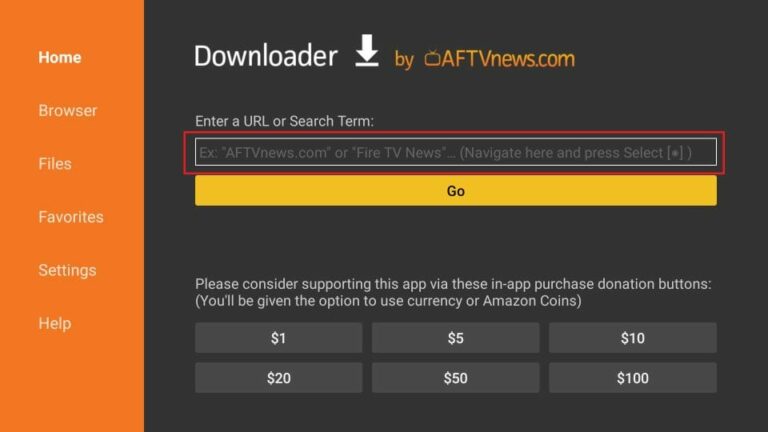
Step 1. Open the Downloader app and select the URL text box on the right (ensure “Home” is selected in the left menu).
Step 2. When prompted, allow Downloader permissions if this is your first use.
Then, enter the IPTV Smarters Pro download URL (check the official site or verified source) and click GO.
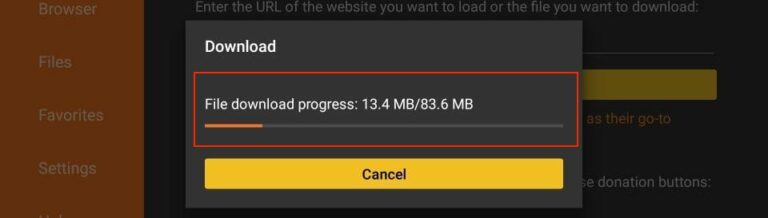
Step 3. Wait for the APK file to download.
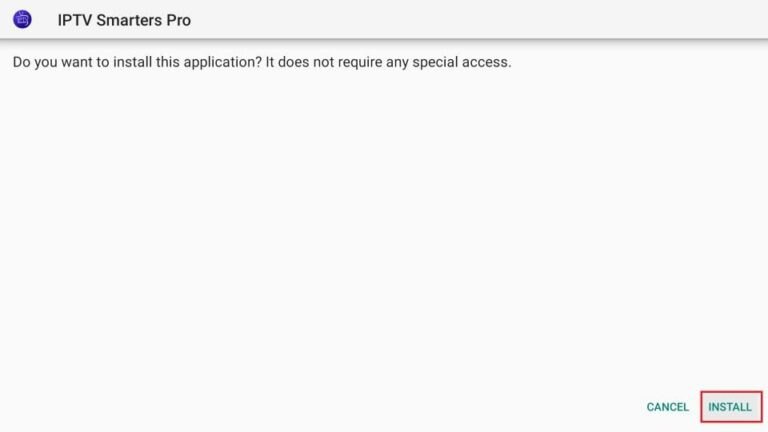
Step 4. When prompted, click Install.
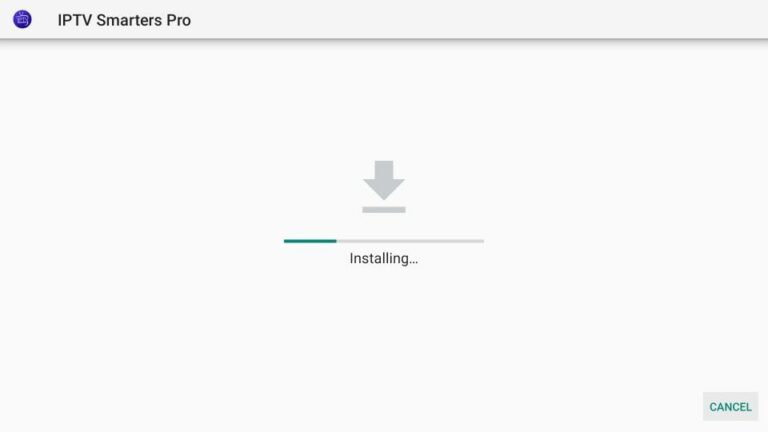
Step 5. Wait until the installation completes.
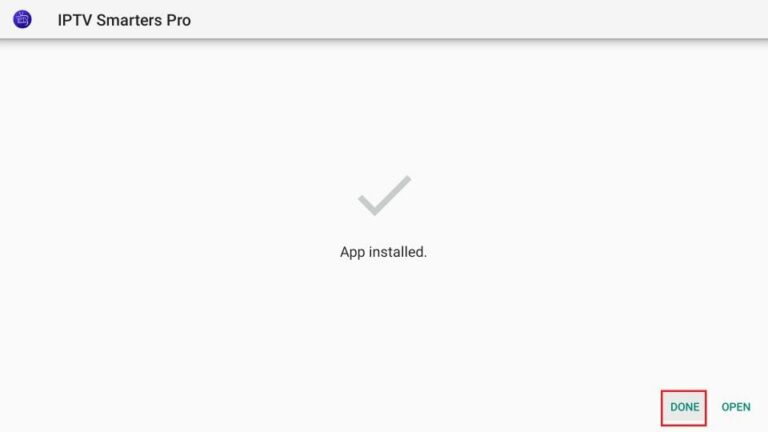
Step 6. When done, click DONE (recommended) or OPEN to launch the app immediately.
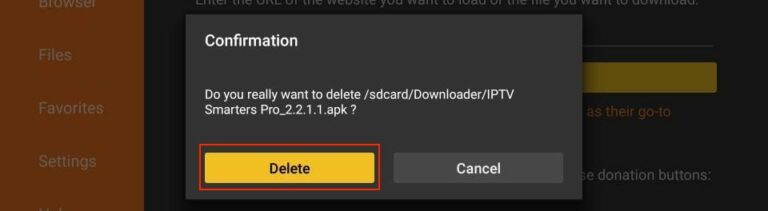
Step 7. Back in Downloader, choose DELETE to remove the APK file.
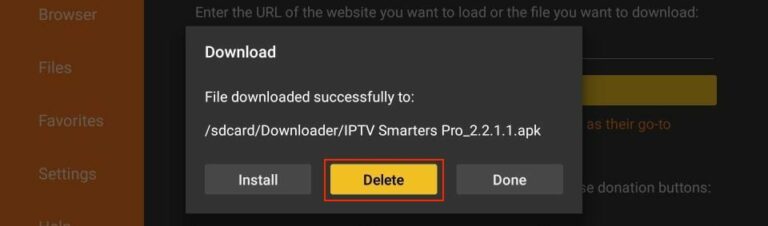
Step 8. Confirm DELETE again to free up space.
✅ Congratulations! IPTV Smarters Pro is now successfully installed on your device.
How to Set Up IPTV Smarters to Stream Content
Once installed, connect your IPTV subscription:
- Launch the IPTV Smarters Pro app.
- Select Add Playlist.
- Choose Xtream Codes Login or Load Your Playlist or File/URL.
- Enter your Username, Password, and Server/Playlist URL from your IPTV provider.
- Tap Save Channels and VOD Upload.
- Wait for your content to load, then select Done.
Playlist Setup Guide – Coming Soon!
Disclaimer
This guide is for educational purposes only.
T34M-SK0RPZ does not host, sell, or distribute any IPTV services, channels, or media content.
The legality of IPTV apps and services varies by region — you are solely responsible for verifying that your provider and content comply with your local laws.
Always stream from official, licensed, or public domain sources.