Jailbreaking any Amazon Fire TV Device – A Beginner’s Guide
Table of Contents
- Introduction
- Is It Safe & Legal?
- Understanding Jailbreaking
- Preparing Your Amazon Fire Device
- Installing the Downloader App
- Legal Disclaimer
- Security Considerations
- Conclusion
- Disclaimer
Introduction
Welcome to the T34M-SK0RPZ blog!
This guide walks you through how to sideload apps on your Amazon Fire TV device — the process often called “jailbreaking.”
By the end, you’ll be able to install apps not listed on the Amazon Appstore.
This works for all Fire TV models, including:
- Fire TV Stick (HD, Lite, 4K, 4K Max)
- Fire TV and Fire TV Cube
Is It Safe & Legal?
Yes — jailbreaking your Fire TV Stick is safe and legal, as long as you’re not streaming copyrighted content.
- Safe: You’re not altering system files or voiding the warranty.
- Legal: You own the device and can change the settings Amazon provides.
⚠️ Important: Accessing or streaming pirated material is illegal. Always use public domain or properly licensed sources.
Understanding Jailbreaking
“Jailbreaking” your FireStick simply means enabling third-party app installations.
Benefits include:
- Access to apps not available in the Amazon Appstore.
- Greater flexibility for streaming and customization.
- A reversible, risk-free process.
Preparing Your Amazon Fire Device
Before sideloading, enable Developer Options:
Section 1: Enabling Developer Options
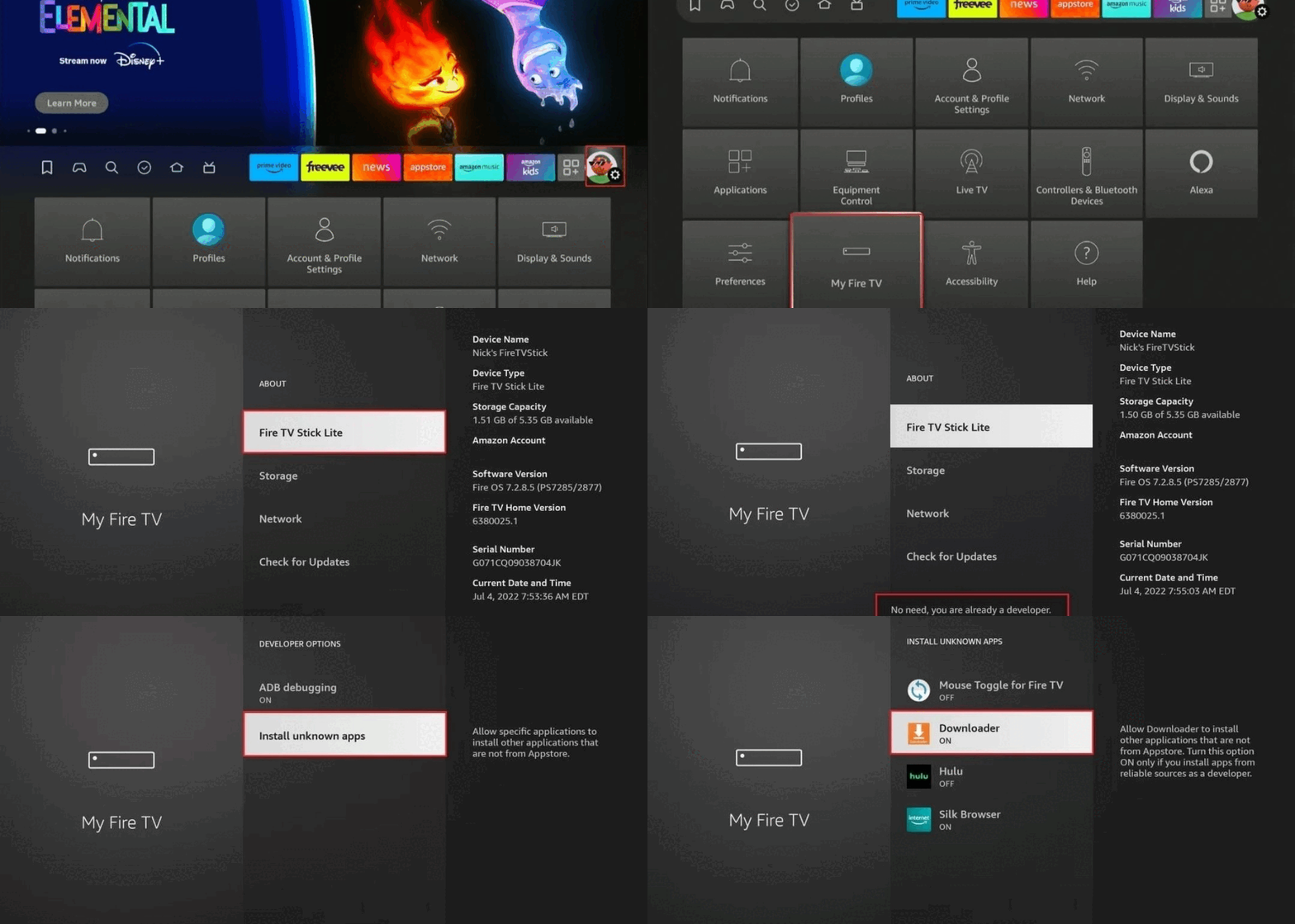
Follow this step-by-step image guide:
Step 1: Go to Settings.
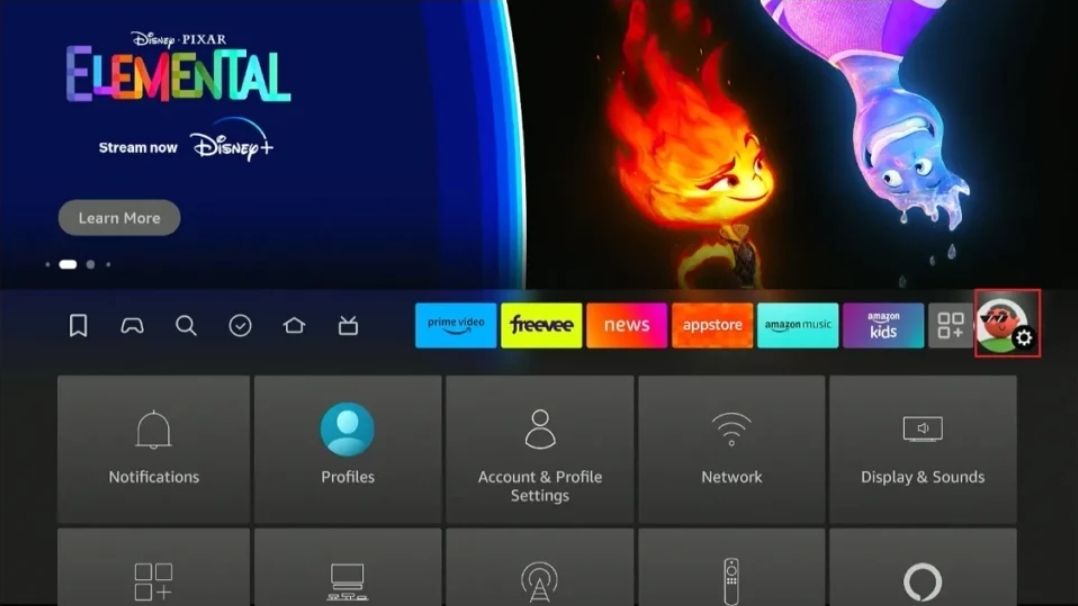
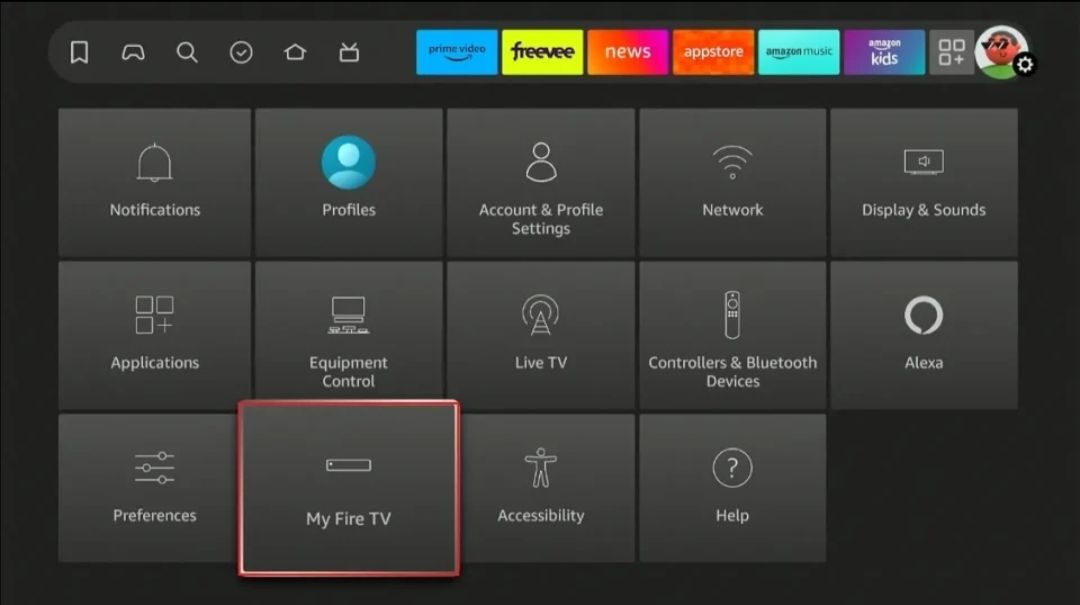
Step 2: Select My Fire TV.
Step 3: Open About.
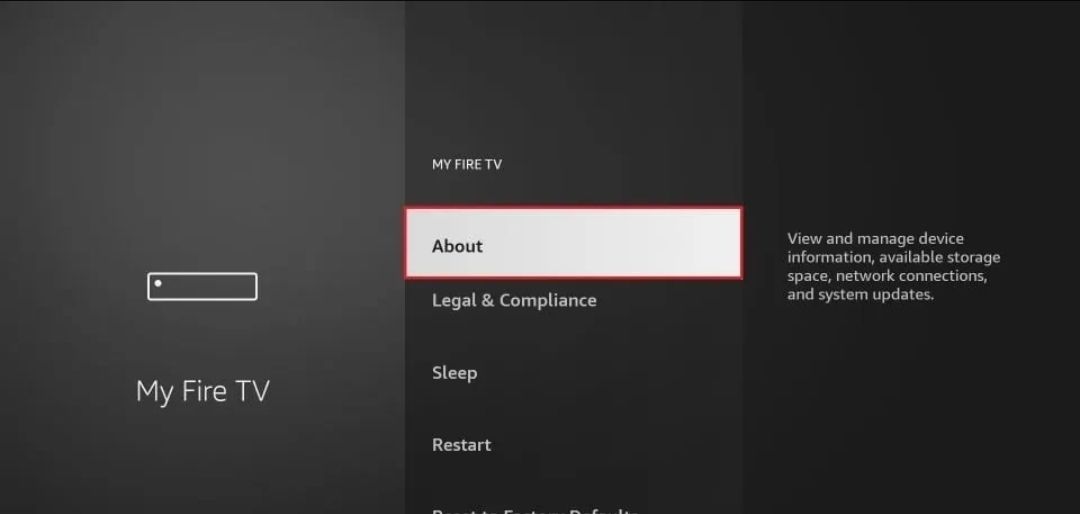
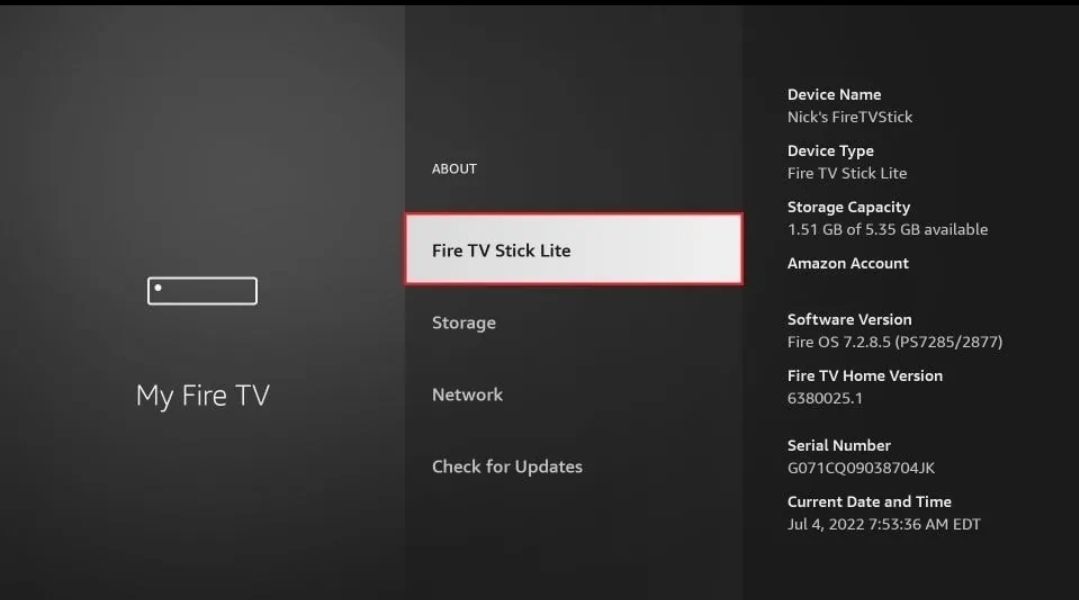
Step 4: Highlight Fire TV Stick and press the Select button 7 times.
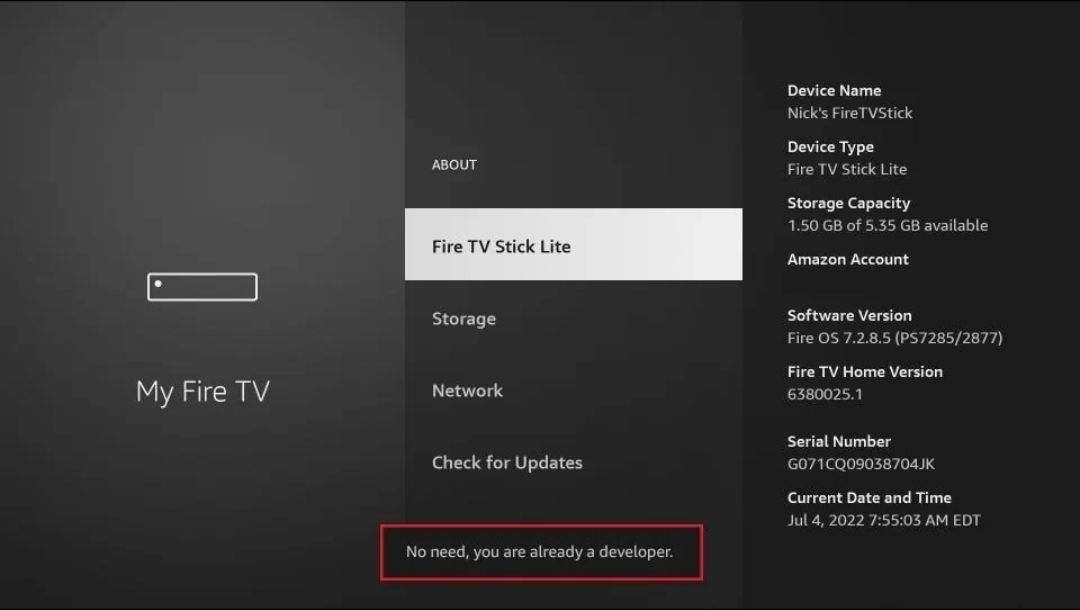
Step 5: You’ll see a message confirming Developer Options are unlocked.
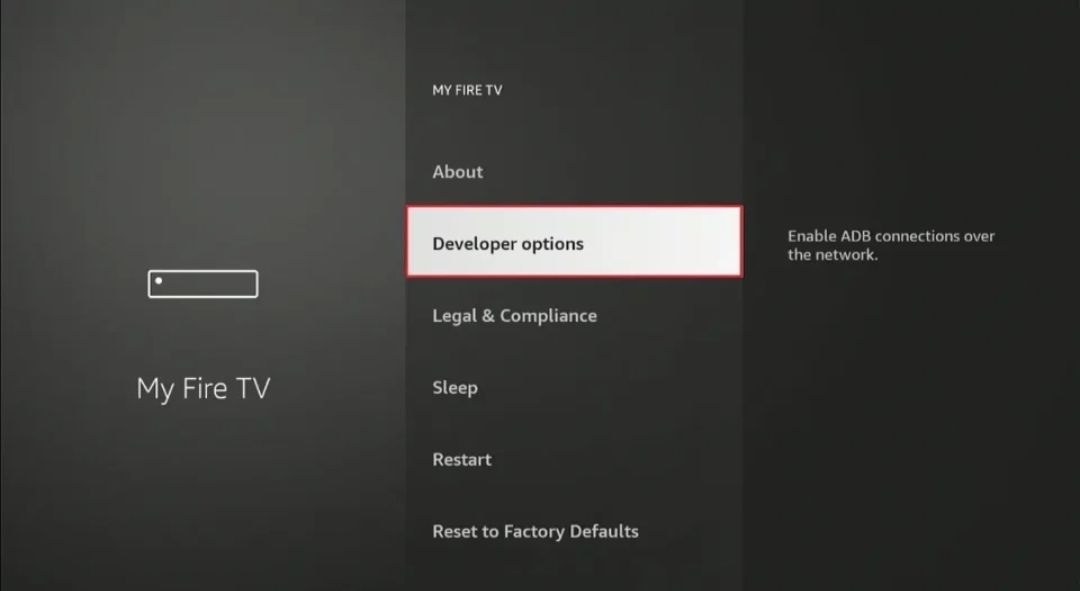
Step 6: Press Back, then open Developer Options.
Step 7: Choose Install Unknown Apps.
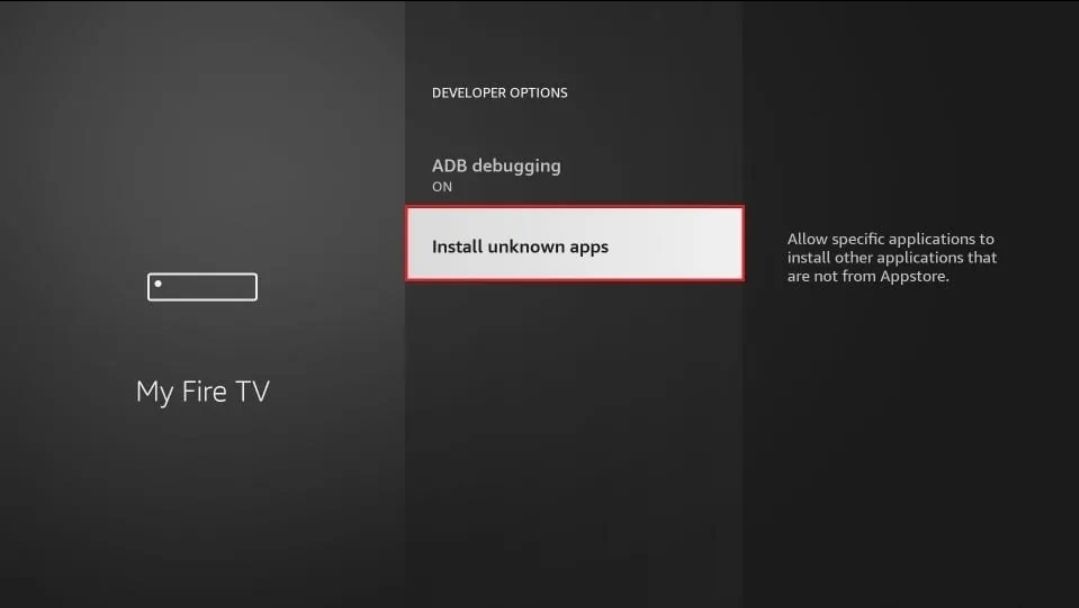
Step 8: Enable Downloader by toggling it ON.
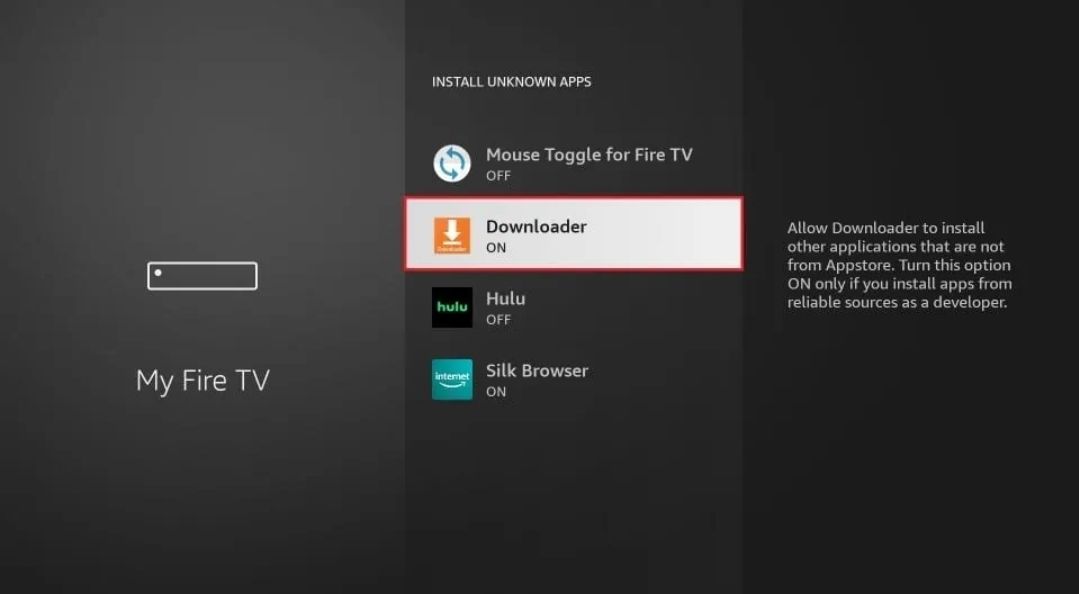
💡 Tip:
- New devices use Install Unknown Apps.
- Older models show Apps from Unknown Sources → select Turn On.
GIF Guide: Unlock Developer Options
Video Tutorial: Coming Soon
Installing the Downloader App
Once Developer Options are on, install Downloader — the app that lets you sideload APK files.
Section 2: Install the Downloader App
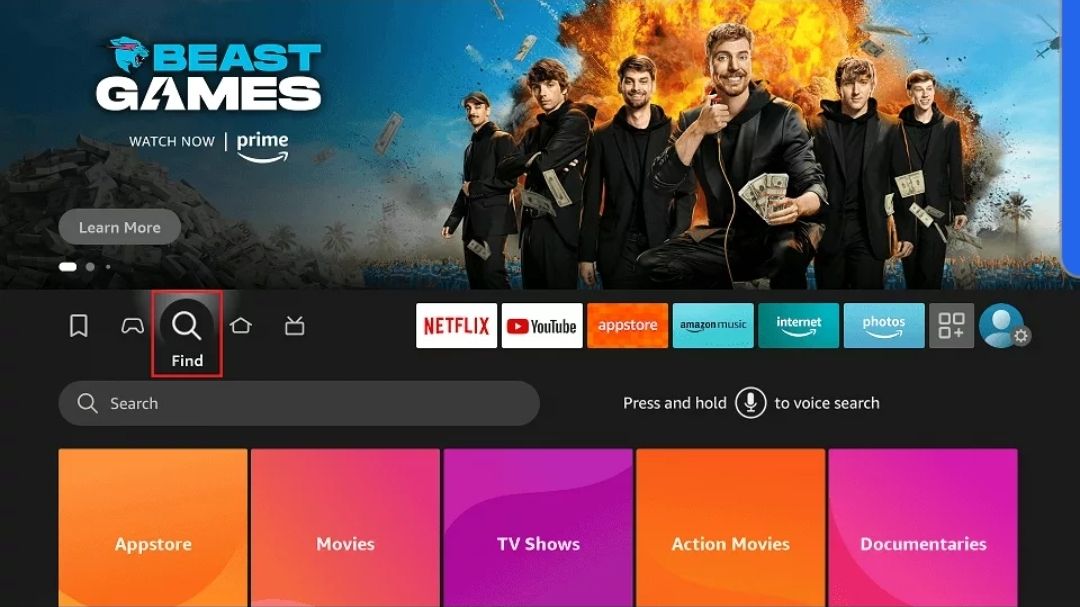
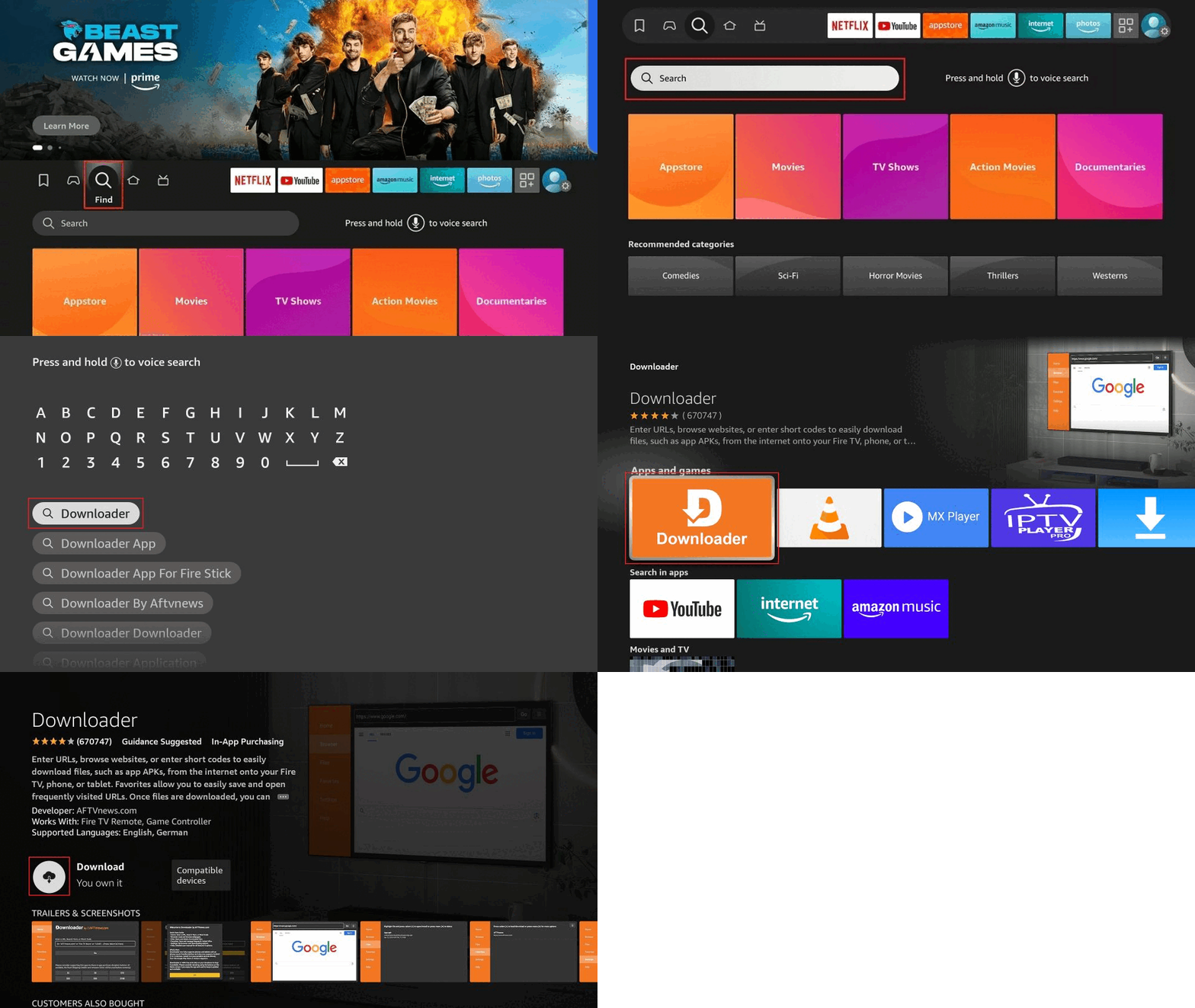
Step 1: From your Fire TV home screen, select the Find icon.
Step 2: Select Search.
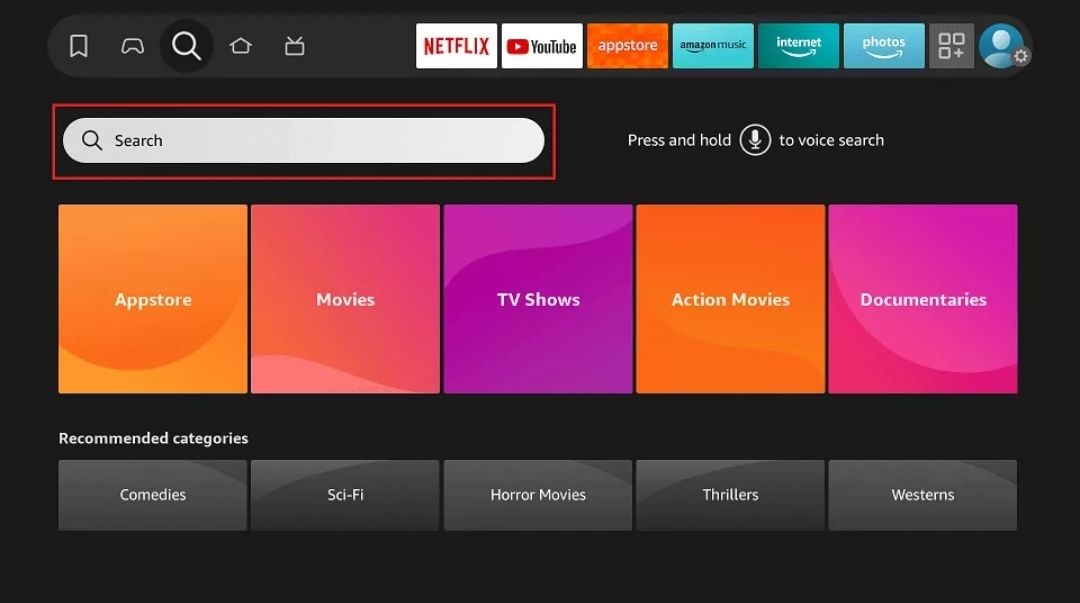
Step 3: Type Downloader, or press the Microphone button and say “Downloader.”
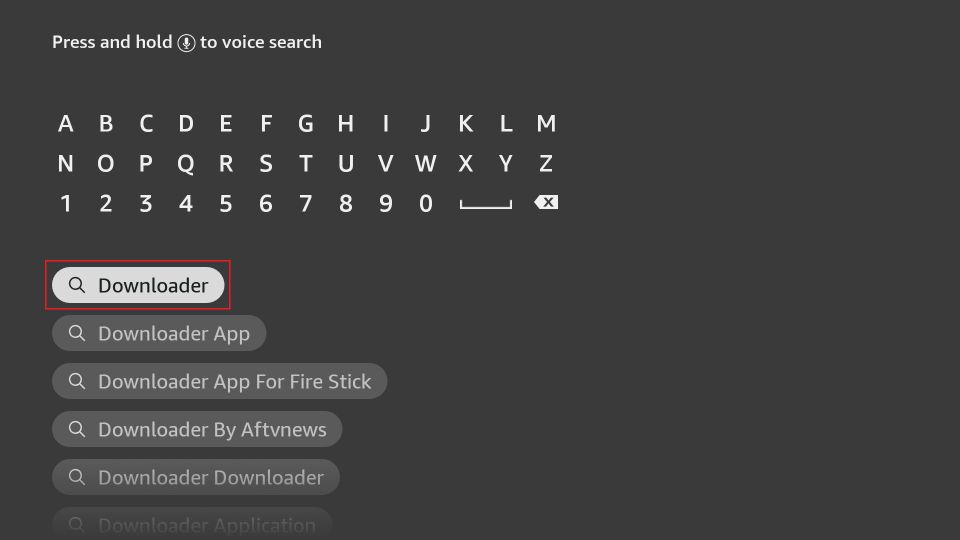
Step 4: Open the Downloader app.
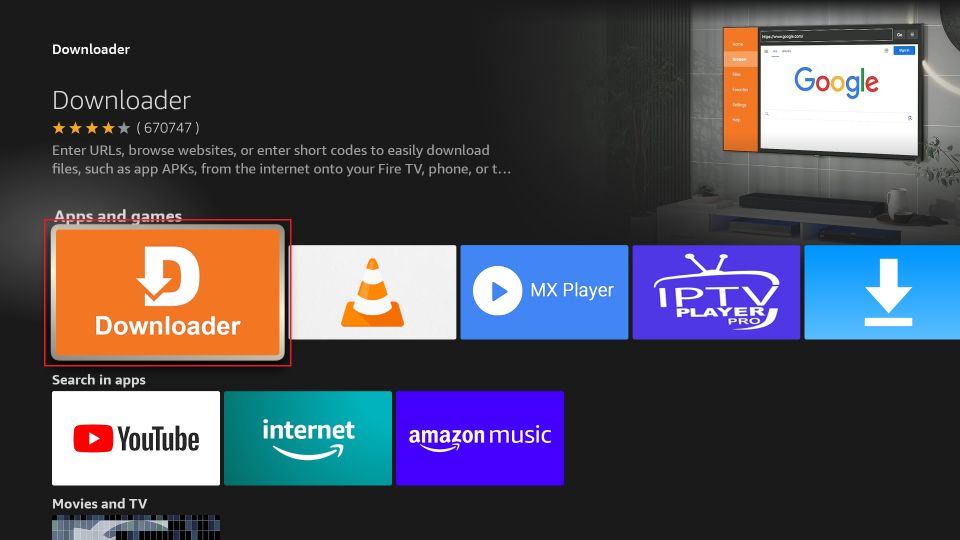
Step 5: Select Get or Download to install it.
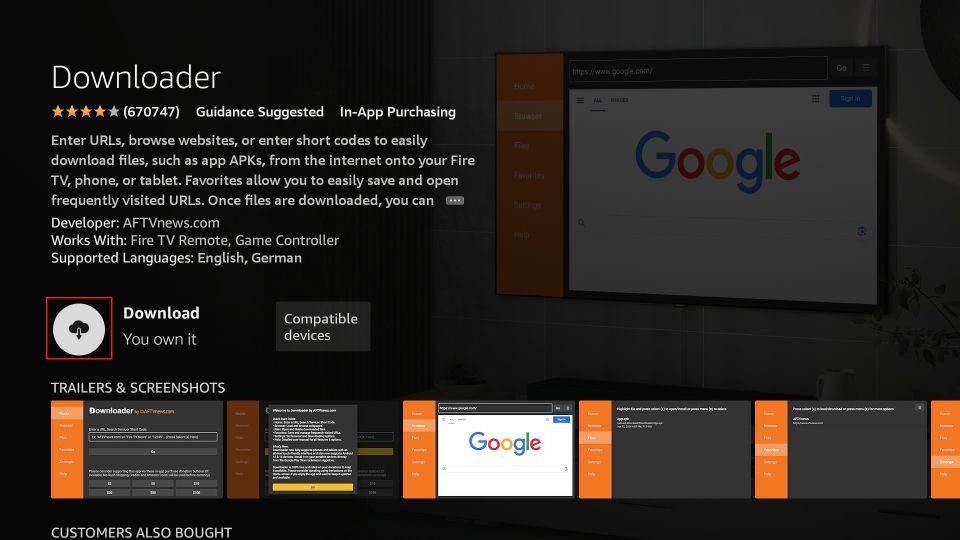
GIF Guide: Installing Downloader
Legal Disclaimer
This tutorial is intended for educational purposes only.
T34M-SK0RPZ does not own, host, or distribute any third-party streaming apps, services, or add-ons.
We cannot verify whether certain apps or sites hold proper licensing.
You are solely responsible for ensuring compliance with your region’s copyright laws.
Important Security Considerations
- Only download APKs from reputable sources.
- Disable ADB Debugging and Install Unknown Apps when not in use.
- Re-enable them only while sideloading.
- Avoid sharing personal data with unverified apps.
Conclusion
Congratulations — you’ve now installed the Downloader app and enabled sideloading on your Amazon Fire device!
Enjoy exploring more apps and customizing your Fire TV experience.
Remember: use your new access responsibly and stay within legal boundaries.
Happy sideloading, my friends!
Disclaimer
This guide is for educational purposes only.
T34M-SK0RPZ does not host, sell, or distribute any IPTV services, channels, or media content.
The legality of IPTV apps and services varies by region — you are solely responsible for verifying that your provider and content comply with your local laws.
Always stream from official, licensed, or public domain sources.